
Danfoss Link™
Danfoss Link™ has served millions of homes well over the last almost ten years. With the Link™ smart heating solution, Danfoss successfully entered the universe of smart home heating. For all future installations, Danfoss Ally™ is the smart heating solution we recommend. With Ally™, we move to the best-in-market IoT standard protocol Zigbee, and open up for other players in smart heating to integrate, thus creating even better solutions within the smart home category. We continue to support the Link solution, but new development will for the above reasons take place on the Ally™ platform.
Danfoss Link™ Central Controller is firmware upgradable.
Report security concerns or security vulnerability if you have discovered an issue with one of our products or services.
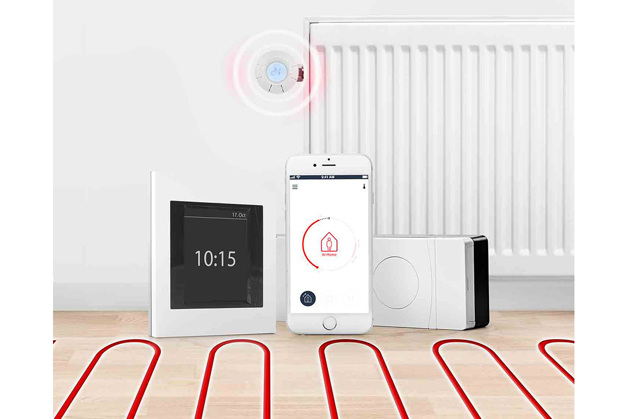
The Danfoss Link™ product family includes
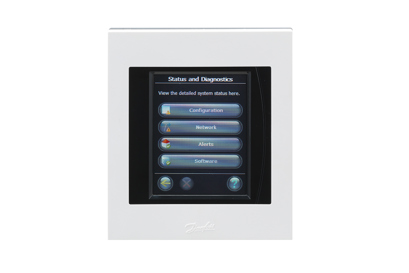
Danfoss Link™ Central Controller is the centrally placed main unit for controlling of indoor climate throughout the house. It can be used in detached single-family homes of less than 300m2 with a maximum of 30 connect thermostats per one controller.
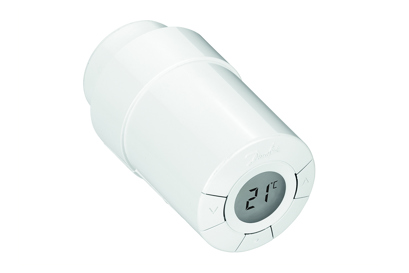
The Danfoss Link™ Connect Thermostat is a smart electronic radiator thermostat. Used together with the Danfoss Link™ CC Central Controller it ensures pleasant warmth with the highest levels of energy efficiency.
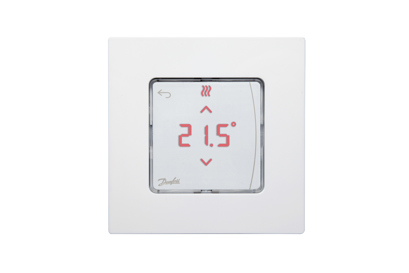
Danfoss Icon™ Room Thermostat is an electronic sensor for measuring room temperature in a particular room.
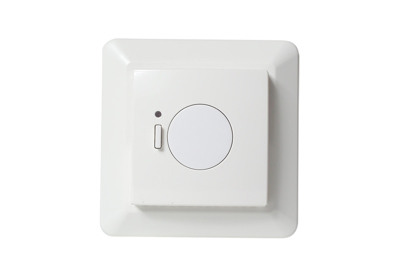
Danfoss Link™ Floor Thermostat for electrical floor heating switches the heating on and off. Optionally equipped with a sensor to easily and accurately measure floor temperature
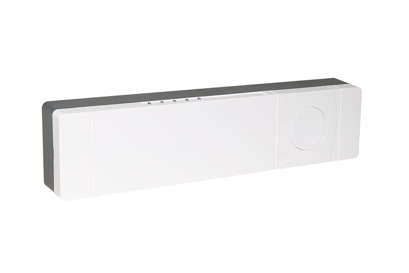
The Danfoss Link™ hydronic controller controls hydronic floor heating systems. The system offers a wide range of extended functionalities for optimal comfort and energy saving with individual room temperature control.
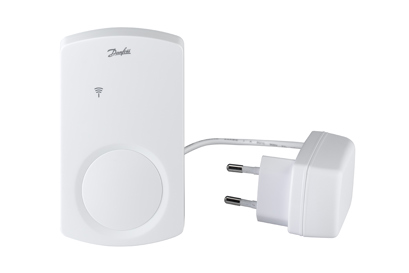
Various accessories for the Danfoss Link™ system: repeater unit, adapters, boiler relay and others
Videos
Software

Danfoss Link™ with wifi has been available since August 2015.
The latest software version is version 4.2.1797 (28-02-2025)
You can check if your Danfoss Link CC is Wi-Fi compatible in two ways:
1. Check the label (sticker) on the back of your Danfoss Link CC.
The version number must be 4.
2. If your CC is on and fully configured, you can follow the steps below to check if the CC is Wi-Fi compatible:
a. Click on the main screen
b. Select ‘House control’
c. Find and select ‘Settings’
d. Search for ‘Wi-Fi and Apps’
If this point is visible you Danfoss Link CC is Wi-Fi Compatible
Danfoss Link™ with USB was sold from 2013 to August 2015.
First, download the current version of the software to a USB clicking the relevant link.
Then go to your Central Controller and do the following:
1. Insert USB. Please note!
The automatic firmware update of the Link CC via Wi-Fi is not available. Please find how to update the firmware via USB port in the next option section. Flash drive format: FAT 32, Capacity: <= 4 Gb
2. Press the screen view Start mode
3. Select “House control”
4. Select “Settings”
5. Select “Wi-Fi and apps”
6. Select “App options”
7. Select “Software update”
8. Select “Update via USB”
9. Select “Update software now”
Danfoss Link™ with SD card was sold from 2011 to 2013.
First, download the latest software version onto a mini SD card using the following link.
Then go to your Central Controller and do the following:
Insert mini SD card
Remove the front cover and hold the SETUP key down for three seconds to call up the installation menu
Select "Software"
Select "Software upgrade"
Select "Start software upgrade"
Select "Update software now"
Note: Central controllers from before 2010 sometimes use software version 1.x.x. In that case, you need to update your Central Controller to version 2.1.35 before updating to the latest software.
FAQ
Firmware update for Danfoss Link™ CC – February 2025
We are now offering for download a new firmware update for the Danfoss Link™ Central Controller (CC), which includes:
• Support for using the Danfoss Z-Wave Repeater (088U1102)
• Upgrade of the communication protocol used for Amazon Alexa.
The new firmware can be downloaded from the Software page (link).
Once downloaded, you should place the file directly onto an empty USB drive.
Then go to your Central Controller and do the following:
1. Insert USB
2. Press the screen view Start mode
3. Select “House control”
4. Select “Settings”
5. Select “Wi-Fi and apps”
6. Select “App options”
7. Select “Software update”
8. Select “Update via USB”
9. Select “Update software now”
Should you experience challenges with this last firmware update, we suggest you downgrade your Link CC back to the previous firmware update, which can be downloaded here.
Danfoss Link FAQ's
How do I install or replace thermostats or adapters?
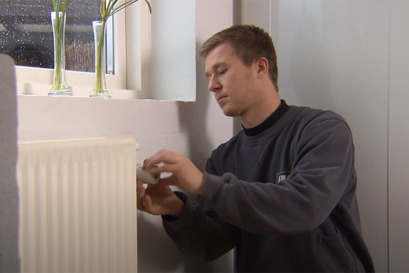
Demount old thermostat
If you have an old thermostat on your radiator, you need to dismount your old thermostats, before you can install Connect Thermostat.
Watch video
Mount new thermostat and adapter
First, you need to identify which adapter is right for your radiator. Danfoss provides different adapters for different radiator valve types. Use the adapter selection guide by placing the different dimensions onto the valve to identify which adapter fits your valve.
The adapters supplied cover more than 90 per cent of all top mounted valves, both Danfoss and other brands. If none of the adapters fit onto your valve, it may be because your valve is old. In this case, we recommend that you buy a new valve.
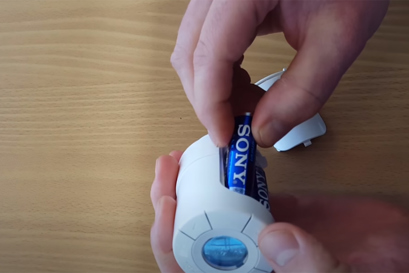
Second, fit the correct adapter onto the valve. Insert batteries into your new Connect Thermostat and screw the thermostat onto the adapter and tighten. Leave mounting mode.
Now you are ready to create room and add devices on your Danfoss Link™ Central Controller.
What happens if there is a power outage or my device runs out of battery?
Power outage on Danfoss Link™ Central Controller
If there is a power outage, the Danfoss Link™ Central Controller will turn on, once it gets power again and will connect to your installed devices.
If the Central Controller does not get power again:
• Connect Thermostat will continue on the temperature they were at when the power outage happened
• the Room Sensor will go into frost protection mode
Connect Thermostat or Room Sensor runs out of battery
When Connect Thermostat or Room Sensor is low on a battery, a battery icon will be shown in the display and the Central Controller will give you an error message. If a Connect Thermostat or Room Sensors runs out of battery, they will go into frost protection mode.
Connect Thermostats and Room Sensors use 2 x AA non-rechargeable batteries each.
Why is there no connection between my Central Controller and one or more of my devices?
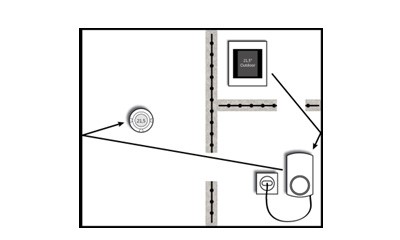
The freer passage the radio signal from the Central Controller has, the farther it can reach. House walls, metal objects, special constructions and other obstacles weaken the signal. Your Central Controller will give an alarm if it cannot reach a device for more than 1.5 hours.
If there are obstacles between your devices, you may need to install a Repeater Unit to extend the signal. If necessary, you can extend the extended signal by adding another Repeater Unit as illustrated below. You only need one Central Controller for your home.
When do I need a Danfoss Icon™ Room Thermostat?
It can measure and control the temperature at a specific spot in your home.
If you place the Icon™ Room Thermostat close to your couch or away from a window, you ensure your desired temperature at this spot, because you optimize the actual temperature measurement in the room.
We recommend adding a Icon™ Room Thermostat in rooms with multiple radiators, because the Room Sensor balances the temperature across radiators based on the room temperature.
If your radiator thermostat is covered, e.g. by furniture, the Icon™ Room Thermostat will ensure your desired temperature in the room.
Add the Icon™ Room Thermostat to your Danfoss Link™ Central Controller in the same room as the Connect Thermostat you want the Icon™ Room Thermostat to be connected to.
How do I get the optimum energy savings with a Danfoss Link™ system?
Energy savings are achieved through a reduction in room temperature.As a general rule, you can save 5% of energy consumption for every degree you lower the temperature at night. We recommend, you lower the temperature 3-4 °C at night and during working hours, e.g. from 21°C to 17°C. Also, activate vacation mode when you are on holiday.
When using Connect Thermostat, the average European saving potential is up to 30% on your heat consumption.
The older your thermostats are when exchanging them, the greater your energy savings will be.
Connect Thermostat was the first electronic thermostat ever to achieve the prestigious AA energy certificate from eu.bac.
Where can I get help with the app or Wi-Fi connection for Danfoss Link™?
Please go to our Danfoss Link™ App Helpdesk and get the assistance you need.
Open helpdesk
Why does the radiator thermostat not reach the temperature I have set?
To ensure that the radiator thermostat can reach the set temperature quickly, we recommend a difference between Away/Asleep mode and At Home mode at max. 4 ˚C.
Danfoss Link™ offers a precise and energy efficient heating regulation by adapting itself to the heating system. This takes approximately one week after installation. Therefore, during the first week you can experience fluctuations as the thermostats are learning when to start heating to reach the specific temperature at the specific time (adaptive learning).
After this period, you can enjoy the perfect temperature in your home whenever you want it.
Can Connect Thermostat and the Danfoss Link Central Controller be used in all types of buildings and homes?
The Danfoss Link™ Central Controller works in all residential units up to 300 m² with a maximum of 50 units per Central Controller (1 Central Controller + 49 units).
How many devices can I connect to a Danfoss Link™ Central Controller?
You can connect up to 50 devices in total to Danfoss Link™ Central Controller and thereof max. 30 Connect Thermostat to Danfoss Link™. Danfoss Link™ controls up to 10 devices in one room.
Can I control my Danfoss Link™ via app?
Yes, if you have the Wi-Fi version of Danfoss Link™ Central Controller. You can download the app from either App Store or Google Play.
Can I buy eco first and then buy Danfoss Link™ Central Controller later?
No.
Eco is a stand-alone product. You need to use Connect Thermostat for Danfoss Link™.
Is Danfoss Link™ secure when connected to Wi-Fi?
Danfoss ensures that all the devices in your home and the cloud service we provide to your smartphone are secure at all times. The Danfoss Link™ App is developed on a Home Banking platform and so the pairing of the Danfoss Link™ App to the Danfoss Link™ Central Controller is fully secure.
Can I control more than one Danfoss Link CC from the Danfoss Link App?
Yes. You can control multiple Danfoss Link CC from the App by adding another location. You may add up to 20 locations on one Danfoss Link App. One Danfoss Link can be controlled by up to 20 smartphones. Three users may use the App simultaneously on the same Danfoss Link CC (location).
1. Access the left side panel of the App. Click "Settings".
2. Click "Add new location".
3. Follow the guide that is presented to you.
What happens when I buy a new smartphone?
When you buy a new smartphone you have to establish connection between Danfoss Link™ CC and the new smartphone. Even though all App’s are restored via the cloud solution, then the pairing must be done again. The App will of course guide you through the menu in Danfoss Link™ CC to locate the pairing code.
Why are my radiators heating doing night set-back periods? (Link)
The reason might be, that Adaptive learning is enabled.
The adaptive learning function (Forecast) ensures that the comfort temperature is reached at set time. The warm up time is continuously adjusted according to seasonal temperature changes.
Adaptive learning ensures the wanted temperature at the wanted time (here 20 °C at 07:00).
Adaptive learning uses data from the previous 7 days to be able to reach the correct temperature at the right time.
Adaptive learning is sensitive to large, rapid temperature changes.
Winter: Long warm up time. Spring/fall:Short warm up time
In case you would like to disable this feature, it can be done in following way:
Go to installer menu (Remove the white frame from Danfoss Link and press setup)
Room and devices ->
Manage existing room ->
Configure existing room ->
Choose room ->
Heating regulation ->
Forecast feature (On / Off)
If you turn Forecast OFF, heating will be running according to set schedule.
Where can I download the Danfoss Link App?
The Danfoss Link App is available from Google Play and App Store on iTunes.
Keyword to search for is "Danfoss Link".
The minimum requirements are iOS 11.0 or Android 7.0 .
1. Downloading app from App Store
Make sure you have Internet connection.
2. On the iPhone/iPad desktop click on the Apple Store icon:
3. The application will open
4. Search for the application >> on top right type in the name of the application (Danfoss Link) and press Search
5. Choose the application you need. When you click on the app, you will get the application's page (you can find there description, screenshots, requirements and option to download the app).
6. Once App is downloaded, the Installation flag will change to open. The application icon is now available on the iPhone/iPad desktop.
2. Downloading app from Google Play
Make sure you have Internet connection.
2. On the phone/tablet desktop click on the Google Play (Play Store) icon:
3. The application will open
4. Search for the application >> on top right click magnifying glass then type the name of the application (Danfoss Link)
5. Choose the application you need. When you click on the app, you will get the application's page (you can find there description, screenshots, requirements and option to download the app).
6. Once App is downloaded the application icon is available on the phone/tablet desktop.
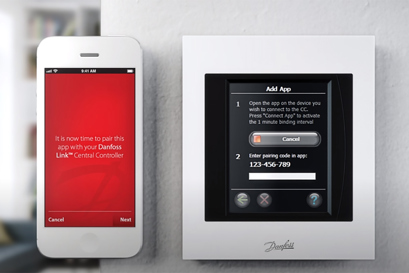
Once you open the App for the first time the Danfoss Link App will show a step by step guide on how to add the App to the Danfoss Link CC. For video guide please open here
What is Living Zone?
Living Zone is a quick way to control the heating of where you live and directly from the Danfoss Link App.
Specifically it is a list of rooms sharing the same heating schedule for when you are at home and away or asleep.
You can access the Living Zone heating schedule as described here:
1. Click on the center of the main screen of the Danfoss Link App.
2. Click on the list of rooms in the Living Zone.
3. Click on the day you want to view.
4. If needed change the schedule.
The day schedule can be copied to other days by clicking "Copy"
It is also possible to have an individual heating schedule for an individual room by deselecting the room from the Living Zone (Please note: at least one room must remain in the Living Zone at all times). This can be done from the Danfoss Link CC using the following steps:
1. Click on the display.
2. Choose "House Control".
3. Choose "Heating Control".
4. Choose "Living Zone".
5. Choose "Select Rooms".
6. A list of rooms will be presented. Deselect the room or rooms that should have an individual heating schedule.
Please note: at least one room must remain in the Living Zone at all times.
On/Off Devices?
We are sorry to announce the product launch of the new Danfoss Link Smart plug has been cancelled due to a number of reasons. At the moment there are no plans to launch smart plugs at a later stage. We are very sorry for inconvenience. view page
What to do if I am unsure if my heating system is working optimally?
Please visit smartheating.danfoss.com for more information on how to improve your comfort or contact the installer who provided the heating system.
What is Manual Temperature?
Manual temperature can be used for when the heating schedule is not needed in an individual room or the Living Zone.
Manual temperature is particular useful if you have a guest room that is rarely used. The heating schedule could be active when the guest is staying in the room and when the guest leaves you could switch to a lower manual temperature saving you energy.
Please note that any room can be changed into an Individual room by following the instructions in this article: What is Living Zone?
Manual temperature for an individual room can be activated as described here:
1. Access the right side panel of the Danfoss Link App.
2. Scroll down to the "Individual rooms" section.
Click on the room name of interest.
3. Slide "Manual temperature" from "Off" to "On"
4. "Manual temperature" is now activated.
Choose a different manual temperature if needed.
I am replacing my Danfoss Link CC and I am concerned about my settings
All your existing Danfoss Link and living products needs to be reset and connected to your new Danfoss Link CC.
If you are unsure on how to do this you can consult smartheating.danfoss.com for more information or contact the installer who provided you with the system for further assistance.
You can use the Danfoss Link App to quickly setup the heating schedule according to your needs.
How do I change the temperature for a room?
The desired temperatures for when you are at home and away or asleep can be set individually for each room using the Danfoss Link App.
1. Access the right side panel of the Danfoss Link App.
2. You now have two options. Click on a room name to view both "At home" and "Away and Asleep" temperatures for that room or click on the pencil to change the current temperature for any room on the list.
3. Change the temperatures.
How do I check if my CC has Wi-Fi?
There are two ways to check if your Danfoss Link CC supports Wi-Fi.
Check the label on the back of the Danfoss Link CC.
The Danfoss Link CC version should be 4.
If your CC is fully installed and powered you can also follow the screenshots here to identify Wi-Fi support.
1. Click on the main screen
2. Click "House Control"
3. Find and click "Settings"
4. Look for "Wi-Fi and Apps".
If it is visible then Danfoss Link CC has Wi-Fi support.
If your Danfoss Link CC Panel has no Wi-Fi option, and you would like to replace it with the new one(with Wi-Fi option available), please contact your Installer.
If your Danfoss Link CC has Wi-Fi you can control your Danfoss Link system from an App on your phone or tablet if you have at least Android 7.0 or iOS 11.0 installed.
Future software updates will automatically be downloaded to your Danfoss Link CC enabling new features and improvements.
Does Danfoss Link™ work with non-Danfoss systems (Amazon Alexa, Apple HomeKit, IFTTT, Samsung SmartThings, Google Assistant)?
Danfoss Link™ is compatible with Amazon Alexa and can be used in English, German, French, Spanish and Italian languages. For the rest countries possible to use English language as an international or any language listed above. More information is posted on the English version of FAQ page –Amazon account registration guide . Also, Danfoss Link™ is compatible with the following home heating products – see the link here . Danfoss Link™ cannot be connected to other systems such as Apple HomeKit, IFTTT, Samsung SmartThings or Google Assistant.
How do I enable Wi-Fi?
1. Click the main screen once.
2. Click "House Control"
3. Find and click "Settings"
4. Click "Wi-Fi and Apps"
5. Click "On"
6. Read and accept "Disclaimer"
7. Select your "Wi-Fi Network" and click "Connect".
8. A new screen appears where you can enter your Wi-Fi password and accept it.
9. The Danfoss Link CC will now connect to your Wi-Fi network and if your password is correct you should momentarily receive a notification that network is connected. Accept the notification and press back to continue.
10. You should now be able to see the following screen:
Please try to search for the Wi-Fi network one more time. Please note that if you have a hidden network (SSID Broadcast disabled) then your network is not shown on the network list. You have to make your Wi-Fi network visible (SSID Broadcast enabled). If you are unsure on how to configure your Wi-Fi router we recommend you contact the provider of your router.
I have no connection to Danfoss Link CC
Check your smartphone or Device
In case of a lost connection to the Danfoss Link App check that your device/ Smartphone are connected - a ‘lost connection’ notice will show on the screen. Follow the device message to reconnect to the network.
Check your Danfoss Link CC connection
There are many factors that might cause your Danfoss Link CC to be off-line occasionally. Before spending the time troubleshooting your home network, you should verify that one of these more common issues aren’t causing the problem:
The connection to the Internet at your home is down
A power failure at home
There is a problem with your Wi-Fi router
You can test this by verifying that your phone can connect to the Internet via the same Wi-Fi network.
If you are still experiencing problems – check these troubleshooting steps:
Restart Wi-fi Router and/or Access point
Check Wi-Fi signal strength at Danfoss Link CC – Try moving the Danfoss link CC closer to the router, if successful this may show that the signal strength is not strong enough to reach where you would like to locate your unit.
Check the router parameters – the table below shows the recommended settings for the Danfoss Link CC.
Try to connect the Danfoss Link CC to a mobile hotspot using your smartphone
Restart the Danfoss Link CC
Check for 2.4 GHz interference – There is more details below about the types of devices that could be interrupting the signal.
Check the parental controls on your Wi-Fi router/access point and other firewall settings (Refer to your Wi-Fi router documentation to see if this feature is enabled on your network and how you can exempt the Danfoss Link CC from these restrictions).
Update your Wi-Fi access point or router’s firmware
Recommended Wi-Fi / Router setting for use with Danfoss Link CC
| Parameter | Value | Comments |
| SSID | Any unique name | |
| Hidden | Disable | |
| Frequency (*) | 2.4 GHz | The Danfoss Link CC can only support 2.4 GHz |
| 2.4 GHZ mode (*) | 802.11b/g/n | Do not use N only mode |
| Security (*) | WPA2 Personal (AES) | Do not use mixed mode WPA/WPA2 |
| Channel (*) | Fixed (channel 1,6.or 11) | Use one of the channels (1,6 or 11) with least interference |
| 2.4 GHz channel width (*) | 20 MHz | Do not use 40 MHz |
| MAC address authentication or filtering | Disable | |
| DHPC | Enable | Only one DHCP server per network |
| Ports used | 80 and 443 |
(*) Key settings
- Refer to your Wi-Fi router documentation to learn how to update your settings.
- Make sure that “Fast roaming” is disabled. This also known as IEEE 802.11r or Fast BSS Transition (FT), allows a client device to roam quickly in environments implementing WPA2 Enterprise security.
- WPA2 Personal is currently the strongest form of security offered by Wi-Fi products, and is recommended for all uses.
Danfoss Link is using a Wi-Fi at 2.4 GHz, and other home products might be using the same 2.4 GHz frequency-band, and might disrupt your Wi-Fi network. Try turning off any products that might interfere with the Wi-Fi wireless connection, like:
Cordless phones
Burglar alarm system w. room IR sensors
Baby alarms (Monitors)
Microwave ovens
Bluetooth devices
Wireless audio/video equipment
Once you have a working internet connection on both Danfoss Link CC and your smartphone device, then you can use the Danfoss link App anywhere. If you using the Danfoss Link App in a different country than where you live then please be aware that roaming fees may apply for your internet connection.
In case of connection issues please make sure that your phone or tablet is connected to internet using Wi-Fi or mobile data connection and that the Danfoss Link CC has access to Wi-Fi with working internet.
AMAZON ALEXA FAQ's
Danfoss Link™ & Amazon Alexa
Danfoss Link™ is compatible with Amazon Alexa and can be used in English, German, French, Spanish and Italian languages. For the rest countries possible to use English language as an international or any language listed above.
Alexa says “Sorry, which room did you mean?” What should I do?
Just repeat the room name. If the issue constantly rise, please use recommended standard room names from the list.
List of the standard room names:
Room;
Kitchen;
Living room;
Dining room;
Hallway;
Bathroom;
Bedroom;
Kids room;
Office;
Please note: in some cases specific room names may not be recognized by Alexa
What voice commands can I use to control my Danfoss Link™ and thermostats with Alexa ?
Compatible thermostats connected to your Danfoss Link™ CC can be controlled with Alexa by means of the next voice commands:
- Alexa, what is the temperature in (room name)?
- Alexa, turn up/down the heat in (room name).
- Alexa, set the temperature in (room name) to 24°.
The thermostat’s mode cannot be changed via Amazon Alexa. Adjustments to mode must be made via Danfoss Link CC or the Danfoss Link mobile app.
Try saying:
“Alexa, what is the temperature in the Kitchen?”
(Alexa replies: The “Kitchen” temperature is 21 degrees)
“Alexa, turn up the heat in the Kitchen”;
(Alexa replies: “Kitchen” is set to 22 degrees)
“Alexa, set the temperature in the Kitchen to 24 degrees”;
(Alexa replies: “Kitchen” is set to 24 degrees)
Alexa says “Sorry, Danfoss Link™ CC is not responding.” What should I do?
This is most likely happening because your Danfoss Link™ CC is not connected to Wi-Fi or your Danfoss Link™ app.
There are a few things you can try:
Make sure your Danfoss Link™ CC is connected to Wi-Fi. To check Wi-Fi connection, from your Danfoss Link™ CC do the next steps:
1. Click the main screen once;
2. Click "House Control";
3. Find and click "Settings";
4. Click "Wi-Fi and Apps".
In the Alexa App temperatures displayed in Fahrenheit. How can I change this?
As a default temperature unit Alexa App displayed in Fahrenheit. To change the measurement units we need:
1, Alexa App: Open the Amazon App and choose “settings”
2, Alexa App: Click “Device Settings”
3, Alexa App: Choose “This Device”
4, Alexa App: Choose “Measurement Units”
5, Alexa App: Adjust “Measurement
Units” to your preference.
Recommendation: After adjustment new settings restart your Alexa app in order to get information updated.
Amazon Echo does not support my native language, can I use the integration anyway?
Amazon Echo is currently not launched in all markets, which means that Danfoss cannot guarantee functional integration with Amazon Echo. For now Danfoss Link CC supports Amazon Echo in following markets: Germany, England and France.
Supported languages: English (AU), English (GB), English (US), French (FR), German (DE).
Do Danfoss Link™ CC and Amazon Echo need to be on the same Wi-Fi network?
No. They do both need to be connected to Wi-Fi networks, but they can be on separate Wi-Fi networks.
Danfoss Link and Amazon Alexa connection guide
1.1. Download and launch the Alexa App (Amazon Echo setup is done via Alexa App)
Enable Smart Home Skills
1. Download and launch Amazon Alexa App on your device.
2. Alexa App:
Open the left side menu and go to “Skills & Games”
Alexa App:
Search for Danfoss and choose the Danfoss skill
Alexa App:
Click “Enable” skill
1.2. Preparing Danfoss Link CC to Amazon Alexa feature
Alexa App:
Choose the Danfoss Link and follow instructions.
Link CC:
Go to House control -> Settings -> Wi-Fi and Apps -> App Options -> Amazon Alexa
Link CC:
Check “Enable Amazon Alexa” item
Link CC:
Read through and accept the Amazon Alexa EULA
1.3. Pairing Danfoss Link CC and amazon Alexa App
Link CC:
Click “Get pairing code” and go to the Alexa App to insert the pairing code
Alexa App:
Insert the pairing code and click “Pair”
Alexa App:
Click “X” to start discovering devices
Alexa App:
Click “Discover Devices”
1.4. Finish pairing and start working
Link CC:
Confirmation message in the Danfoss Link™ CC, click “OK”
Alexa App:
New devices added; click “Done”
Alexa App:
Click on Thermostats icon to control and edit
Alexa App:
Choose the room you need to make an adjustment
2.1. Current Alexa voice commands
Question: “Alexa, what is the temperature in (room name)?
Alexa: “The (room name) temperature is 23”
Question: “Alexa, turn up/down the heat in (room name)
Alexa: “The (room name) is set to 24° (1° change)”
Question: “Alexa, set the temperature in (room name) to 24”
Alexa: “The (room name) is set to 24°”
It is possible to achieve the same result with a variety of different phrases such as: “increase the temperature in (room name) by 2 degrees”, etc.
Amazon account registration guide
Go to Amazon web page depends on language you need
English - www.amazon.co.uk,
German - www.amazon.de,
French - www.amazon.fr,
Spanish - www.amazon.es,
Italian - www.amazon.it
Press button at the top right-hand corner ‘Your account’ and below ‘Sign in’ button press ‘New customer, Start here’:
Fill in the registration form and press 'Create your Amazon account':
Before you begin using your Amazon device and Alexa Voice Service, connect it to Wi-Fi network, and then register it to your Amazon account from the Alexa app. To do this, download the Alexa app and sign in. After, use ‘Danfoss Link and Amazon Alexa connection guide ’ to finish the installation procedure.
Product Security and Telecommunications Infrastructure (PSTI)
What is the minimum support period?
The minimum support period: by the 31st of December 2026.
How to report security concern or security vulnerability?
Report security concerns or security vulnerability if you have discovered an issue with one of our products or services.
Documents
| Type | Name | Language | Valid for | Updated | Download | File type |
|---|---|---|---|---|---|---|
| Brochure | Danfoss Link & connect thermostat - product sheet | Swedish | Sweden | 31 Aug, 2015 | 400.8 KB | |
| Brochure | Danfoss Link & connect thermostat - product sheet | French | France | 11 Jan, 2016 | 436.1 KB | |
| Brochure | Danfoss Link & connect thermostat - product sheet | Finnish | Finland | 20 Sep, 2015 | 344.2 KB | |
| Brochure | Danfoss Link & Living Connect - product sheet | Spanish, Castilian | Spain | 08 Dec, 2014 | 420.4 KB | |
| Brochure | Danfoss Link & Living Connect - product sheet | Slovak | Slovakia | 08 Dec, 2014 | 380.2 KB | |
| Operating guide | Danfoss Link CC instruction | Dutch, Flemish | Netherlands | 03 Nov, 2016 | 2.9 MB | |
| Operating guide | Danfoss Link CC instruction | Estonian | Estonia | 08 Nov, 2016 | 3.1 MB | |
| Data sheet | Danfoss Link RS (Room Sensor) | Danish | Denmark | 29 Sep, 2015 | 283.8 KB | |
| Data sheet | Danfoss Link RS (Room Sensor) | Hungarian | Hungary | 29 Sep, 2015 | 287.4 KB | |
| Data sheet | Danfoss Link RS (Room Sensor) | Dutch, Flemish | Netherlands | 29 Sep, 2015 | 287.2 KB | |
| Data sheet | Danfoss Link RS (Room Sensor) | French | Switzerland | 07 Aug, 2016 | 210.1 KB | |
| Data sheet | Danfoss Link RS (Room Sensor) | Finnish | Finland | 29 Sep, 2015 | 279.3 KB | |
| Data sheet | Danfoss Link RS (Room Sensor) | French | France | 29 Sep, 2015 | 297.6 KB | |
| Data sheet | Danfoss Link RS (Room Sensor) | Swedish | Sweden | 29 Sep, 2015 | 279.3 KB | |
| Data sheet | Danfoss Link RS (Room Sensor) | Polish | Poland | 29 Sep, 2015 | 280.8 KB | |
| Brochure | Danfoss Link™ - brochure for professionals | Czech | Czech Republic | 21 Jan, 2016 | 1.1 MB | |
| Brochure | Danfoss Link™ - brochure for professionals | Italian | Italy | 13 Dec, 2015 | 1.2 MB | |
| Brochure | Danfoss Link™ - brochure for professionals | Swedish | Sweden | 14 Dec, 2015 | 3.1 MB | |
| Brochure | Danfoss Link™ - brochure for professionals | Finnish | Finland | 10 Sep, 2015 | 1.0 MB | |
| Brochure | Danfoss Link™ - brochure for professionals | Lithuanian | Lithuania | 17 Jan, 2016 | 8.4 MB | |
| Brochure | Danfoss Link™ - brochure for professionals | French | France | 11 Jan, 2016 | 1.2 MB | |
| Data sheet | Danfoss Link™ BR Boiler Relay | English | Multiple | 11 Nov, 2013 | 164.9 KB | |
| Data sheet | Danfoss Link™ CC Central Controller | Romanian, Moldavian, Moldovan | Romania | 24 Jan, 2017 | 364.1 KB | |
| Data sheet | Danfoss Link™ CC Central Controller | Hungarian | Hungary | 07 Dec, 2021 | 364.7 KB | |
| Operating guide | Danfoss Link™ CC Central Controller | Lithuanian | Lithuania | 06 Aug, 2019 | 3.1 MB | |
| Operating guide | Danfoss Link™ CC Central Controller | Romanian, Moldavian, Moldovan | Romania | 19 Jan, 2016 | 3.0 MB | |
| Operating guide | Danfoss Link™ CC Central Controller | Italian | Italy | 07 Aug, 2019 | 3.1 MB | |
| Operating guide | Danfoss Link™ CC Central Controller | Slovenian | Slovenia | 19 Mar, 2024 | 3.0 MB | |
| Operating guide | Danfoss Link™ CC Central Controller | Latvian | Latvia | 03 Oct, 2019 | 3.4 MB | |
| Operating guide | Danfoss Link™ CC Central Controller | Croatian | Croatia | 19 Jan, 2016 | 3.0 MB | |
| Operating guide | Danfoss Link™ CC Central Controller | Hungarian | Hungary | 19 Jan, 2016 | 3.0 MB | |
| Operating guide | Danfoss Link™ CC Central Controller | Finnish | Finland | 08 Jul, 2015 | 3.1 MB | |
| Operating guide | Danfoss Link™ CC Central Controller | French | France | 07 Aug, 2019 | 2.9 MB | |
| Operating guide | Danfoss Link™ CC Central Controller | Czech | Czech Republic | 06 Aug, 2019 | 3.1 MB | |
| Operating guide | Danfoss Link™ CC Central Controller | Spanish, Castilian | Spain | 07 Aug, 2019 | 2.9 MB | |
| Operating guide | Danfoss Link™ CC Central Controller | English | Multiple | 19 Mar, 2024 | 3.5 MB | |
| Operating guide | Danfoss Link™ CC Central Controller | German | Multiple | 06 Jul, 2015 | 2.9 MB | |
| Operating guide | Danfoss Link™ CC Central Controller | Danish | Denmark | 30 Jun, 2015 | 4.0 MB | |
| Operating guide | Danfoss Link™ CC Central Controller | Polish | Poland | 19 Mar, 2024 | 3.1 MB | |
| Operating guide | Danfoss Link™ CC Central Controller | Chinese | China | 01 Sep, 2014 | 1.5 MB | |
| Operating guide | Danfoss Link™ CC Central Controller | Swedish | Sweden | 06 Aug, 2019 | 2.9 MB | |
| Data sheet | Danfoss Link™ Central Controller | English | Multiple | 19 Mar, 2024 | 275.8 KB | |
| Data sheet | Danfoss Link™ Central Controller | Estonian | Estonia | 26 Mar, 2014 | 1.0 MB | |
| Data sheet | Danfoss Link™ Central Controller | Czech | Czech Republic | 23 Feb, 2016 | 364.8 KB | |
| Data sheet | Danfoss Link™ Central Controller | Spanish, Castilian | Spain | 02 Mar, 2014 | 1.0 MB | |
| Data sheet | Danfoss Link™ Central Controller | Danish | Denmark | 02 Mar, 2015 | 361.6 KB | |
| Data sheet | Danfoss Link™ Central Controller | Chinese | China | 30 Jun, 2014 | 929.1 KB | |
| Data sheet | Danfoss Link™ Central Controller | Latvian | Latvia | 26 Mar, 2014 | 1.0 MB | |
| Data sheet | Danfoss Link™ Central Controller | Dutch, Flemish | Netherlands | 05 Feb, 2014 | 1.0 MB | |
| Data sheet | Danfoss Link™ Central Controller | Polish | Poland | 22 Jun, 2015 | 364.8 KB | |
| Data sheet | Danfoss Link™ Central Controller | Swedish | Sweden | 26 Aug, 2015 | 362.5 KB | |
| Data sheet | Danfoss Link™ Central Controller | Italian | Italy | 23 Feb, 2016 | 362.6 KB | |
| Data sheet | Danfoss Link™ Central Controller | Lithuanian | Lithuania | 07 Dec, 2021 | 365.1 KB | |
| Data sheet | Danfoss Link™ Central Controller | Finnish | Finland | 26 Aug, 2015 | 362.9 KB | |
| Data sheet | Danfoss Link™ Central Controller | French | France | 23 Feb, 2016 | 364.3 KB | |
| Data sheet | Danfoss Link™ Connect Thermostat (Data Sheet) | English | Multiple | 29 Sep, 2019 | 1.0 MB | |
| Data sheet | Danfoss Link™ Connect Thermostat (Data Sheet) | Latvian | Latvia | 30 Sep, 2019 | 1.2 MB | |
| Brochure | Danfoss Link™ varmestyring. Brochure til installatører. | Danish | Denmark | 03 Dec, 2020 | 1.0 MB | |
| Brochure | living by Danfoss - brochure for professionals | Spanish, Castilian | Spain | 08 Dec, 2014 | 1.2 MB | |
| Brochure | living by Danfoss - brochure for professionals | Estonian | Estonia | 04 Dec, 2014 | 1.2 MB | |
| Brochure | living by Danfoss - brochure for professionals | Slovak | Slovakia | 08 Dec, 2014 | 1.1 MB | |
| Brochure | Living by Danfoss, Installer brochure | German | Multiple | 14 Nov, 2016 | 4.5 MB | |
| Installation guide | living connect® - Installation and User Guide | Romanian, Moldavian, Moldovan | Multiple | 20 Jan, 2022 | 2.2 MB | |
| Installation guide | living connect® - Installation and User Guide | German | Multiple | 23 Jan, 2022 | 2.3 MB | |
| Installation guide | living connect® - Installation and User Guide | Slovak | Multiple | 20 Jan, 2022 | 2.2 MB | |
| Installation guide | living connect® - Installation and User Guide | Lithuanian | Multiple | 23 Jan, 2022 | 2.3 MB | |
| Installation guide | living connect® - Installation and User Guide | Dutch, Flemish | Multiple | 20 Jan, 2022 | 2.2 MB | |
| Installation guide | living connect® - Installation and User Guide | Danish | Multiple | 23 Jan, 2022 | 2.2 MB | |
| Installation guide | living connect® - Installation and User Guide | Latvian | Multiple | 23 Jan, 2022 | 2.3 MB | |
| Installation guide | living connect® - Installation and User Guide | Italian | Multiple | 23 Jan, 2022 | 2.3 MB | |
| Installation guide | living connect® - Installation and User Guide | Estonian | Multiple | 23 Jan, 2022 | 2.2 MB | |
| Installation guide | living connect® - Installation and User Guide | Croatian | Multiple | 23 Jan, 2022 | 2.2 MB | |
| Installation guide | living connect® - Installation and User Guide | English | Multiple | 11 Nov, 2021 | 12.0 MB | |
| Installation guide | living connect® - Installation and User Guide | French | Multiple | 23 Jan, 2022 | 2.2 MB | |
| Installation guide | living connect® - Installation and User Guide | Czech | Multiple | 23 Jan, 2022 | 2.4 MB | |
| Installation guide | living connect® - Installation and User Guide | Spanish, Castilian | Multiple | 23 Jan, 2022 | 2.3 MB | |
| Installation guide | living connect® - Installation and User Guide | Polish | Multiple | 20 Jan, 2022 | 2.2 MB | |
| Installation guide | living connect® - Installation and User Guide | Slovenian | Multiple | 20 Jan, 2022 | 2.2 MB | |
| Installation guide | living connect® - Installation and User Guide | Hungarian | Multiple | 23 Jan, 2022 | 2.2 MB | |
| Installation guide | living connect® - Installation and User Guide | Finnish | Multiple | 23 Jan, 2022 | 2.2 MB | |
| Installation guide | living connect® - Installation and User Guide | Swedish | Multiple | 20 Jan, 2022 | 2.2 MB | |
| Installation guide | living connect® - Installation and User Guide | Turkish | Multiple | 20 Jan, 2022 | 2.2 MB | |
| Fact sheet | Overview - Danfoss Link and living software versions | English | Multiple | 17 Mar, 2025 | 458.3 KB | |
| Data sheet | Електронний радіаторний терморегулятор Danfoss Link™ Connect | Ukrainian | Ukraine | 09 Feb, 2020 | 177.2 KB |
Related solutions

Smart heating by Danfoss
Danfoss smart heating has a solution for every home and every need, from a stand-alone smart radiator thermostat to complete smart heating solutions for total control
– anytime anywhere.
Smart heating